A hands-on walkthrough of PromptLayer
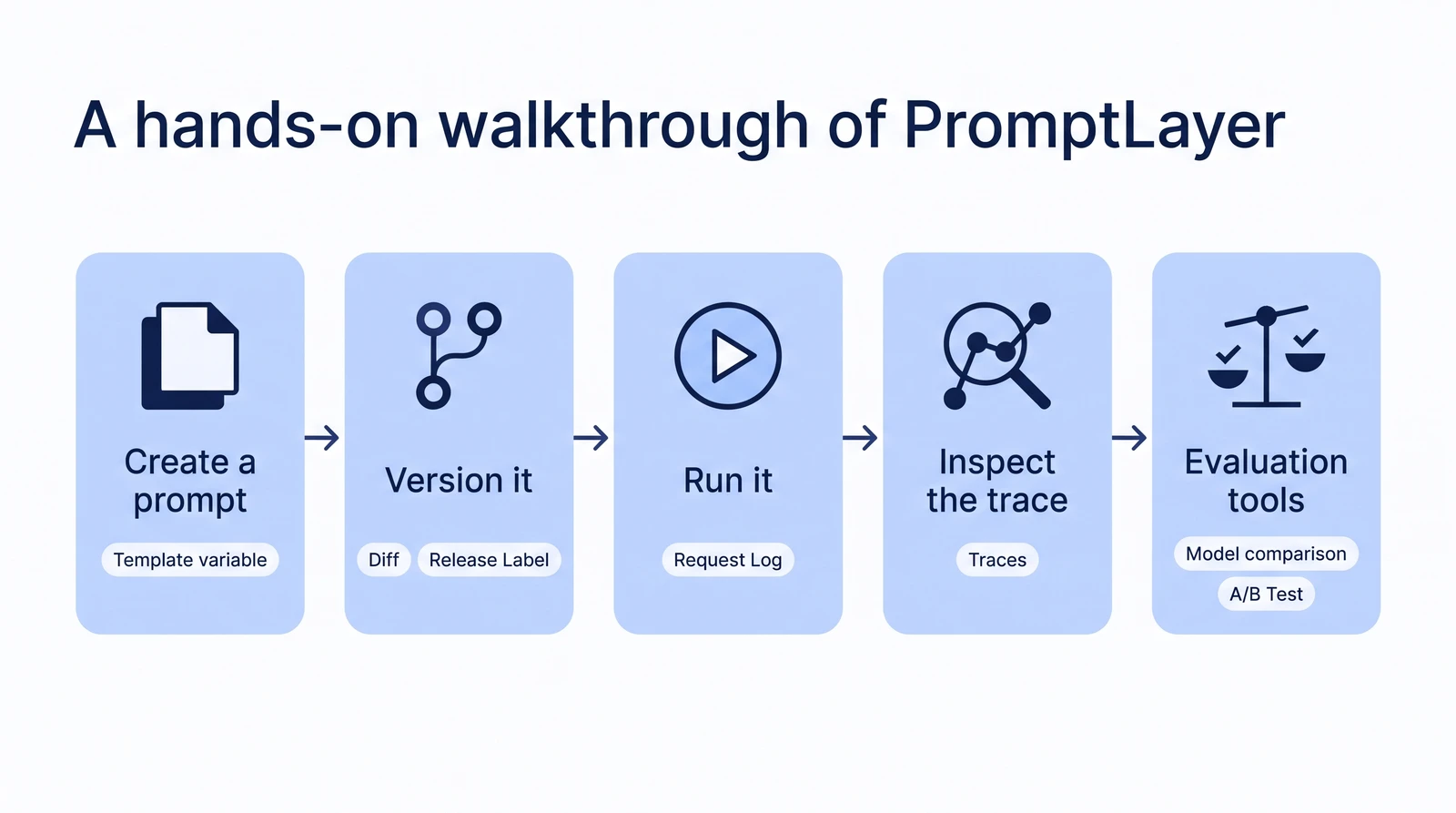
This is a hands-on look at PromptLayer. We logged into a hosted PromptLayer account and did the same four things we do on every platform in this series: create a prompt, version it, run it and inspect the trace, and try the evaluation tools. Where we did not test a feature, we say so and quote PromptLayer's docs instead.
- When: July 2026. The screenshots are from that month. Docs and prices were re-checked on 2 November 2026.
- Where: hosted PromptLayer, on a Team trial plan.
- SDK version: not recorded.
The main comparison post puts the findings next to the other platforms. We build AcruxCore, one of the tools in that comparison.
1. Logging in and finding the workspace
PromptLayer's dashboard opens straight to a home screen listing recent playground sessions and saved prompt items for the workspace ("AcruxCore Research", on a Team Trial Plan).
Show screenshot: PromptLayer workspace home
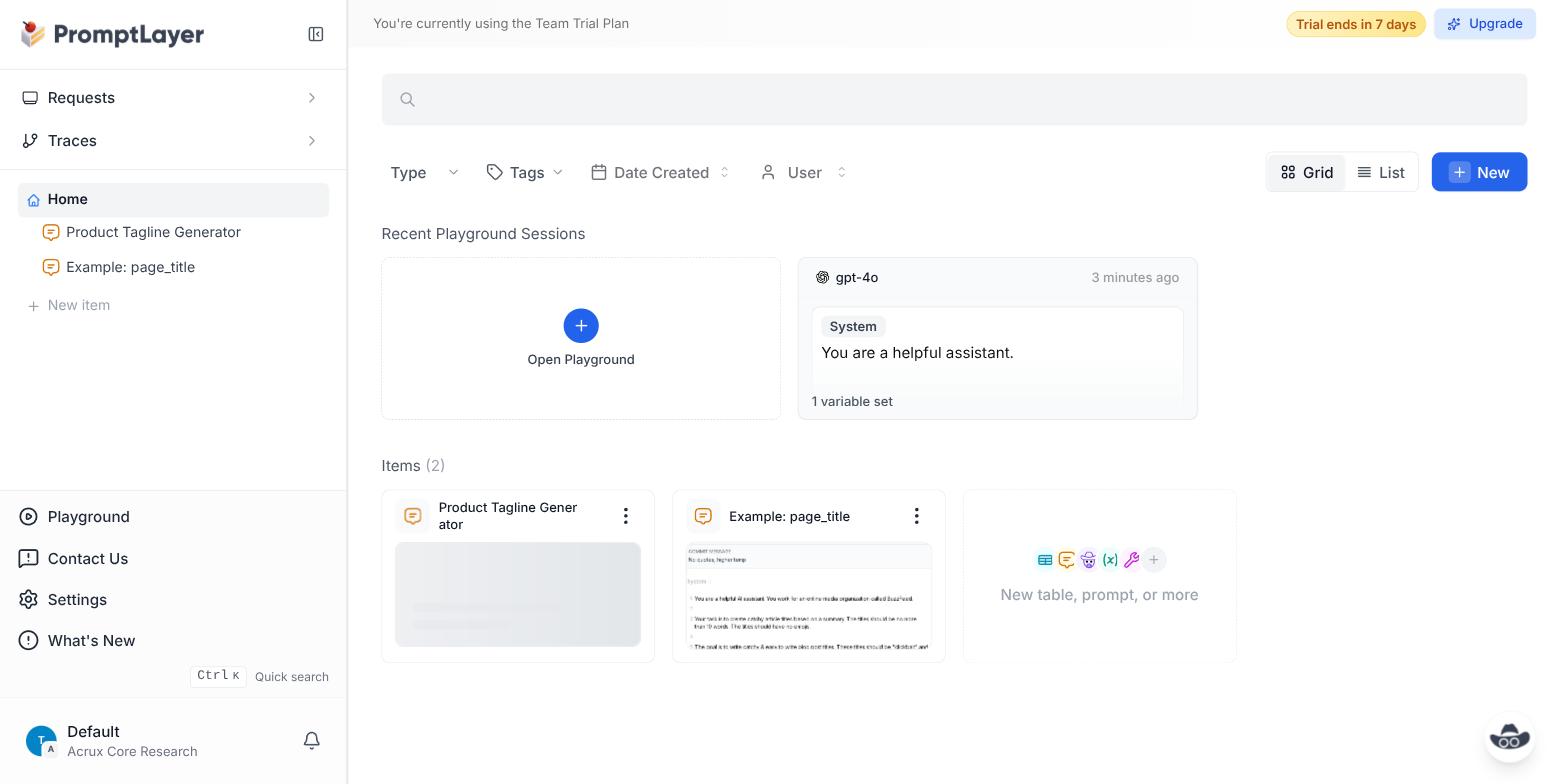
The New menu in the top right is the entry point for everything: prompts, interactive tables, workflows, tools, snippets, and an A/B Test item, which section 5 covers.
2. Creating and running a prompt
Creating a prompt opens a playground-style editor immediately: a system message box, a user message
box, and a model picker (defaulted to gpt-4o). Typing {{city}} in a message makes it a
template variable, shown as a highlighted chip, with no separate step to declare it.
PromptLayer's template docs
also offer Jinja2 templates, with conditionals and loops (checked on 2 November 2026). We used only
{{variable}} placeholders.
Show screenshot: PromptLayer prompt editor with a variable
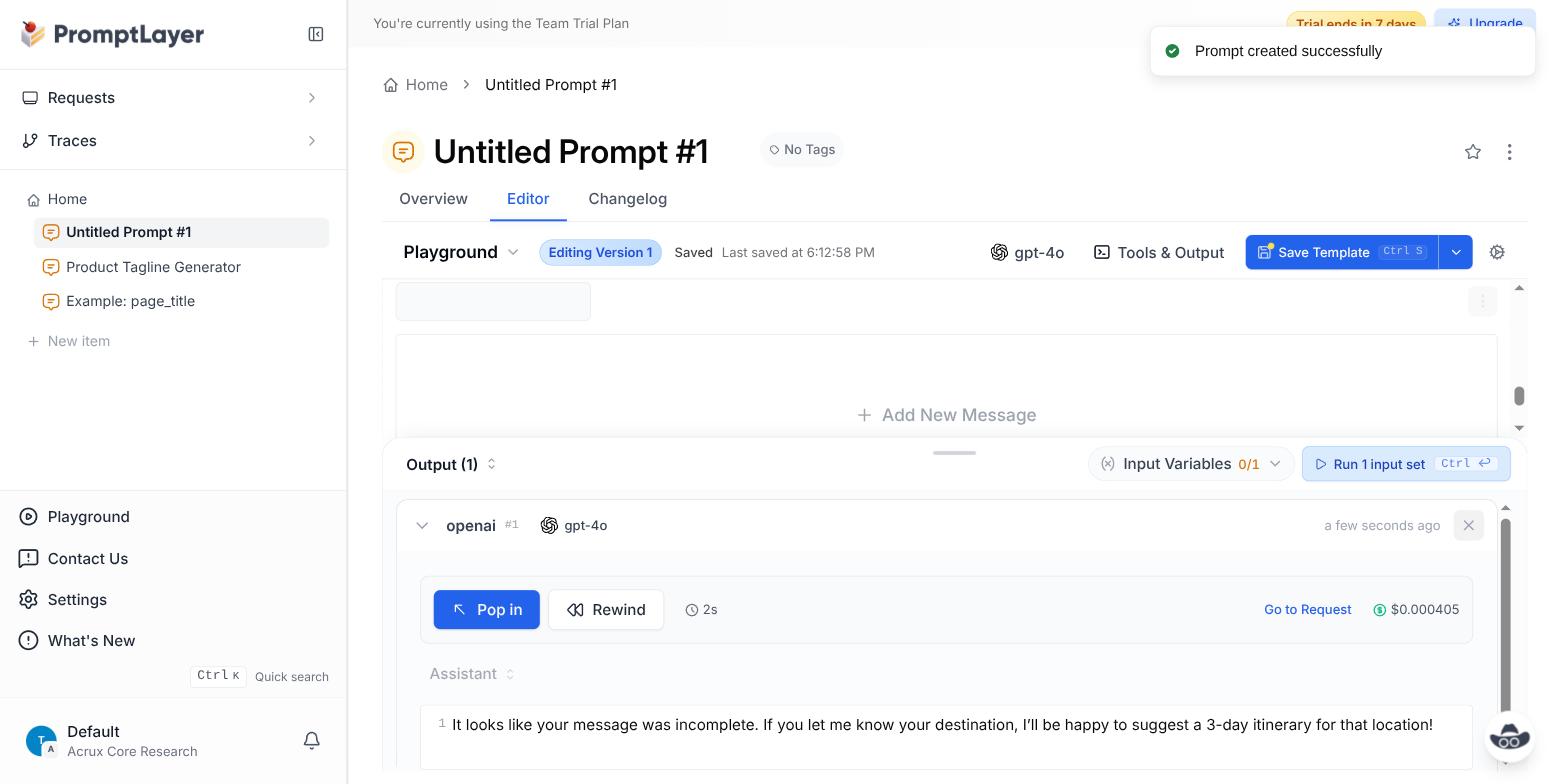
Running the prompt (via the Run button, without filling in the variable) produced a real output in about 2 seconds for $0.000405. The output card shows the cost and latency, and a Go to Request link opens the log entry for that call.
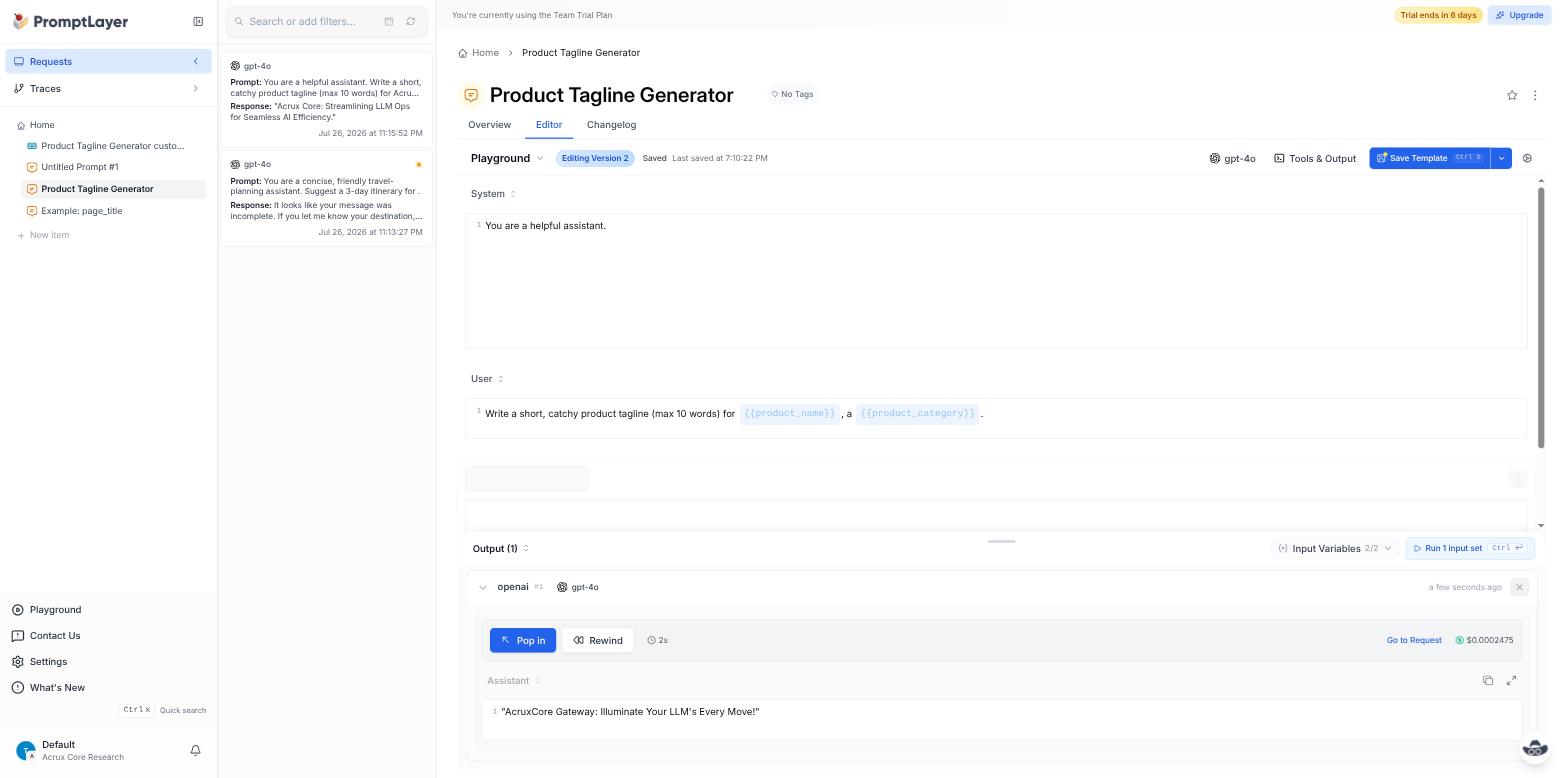
We also added our own OpenAI key under Settings → Model API Keys → OpenAI and ran a second
prompt, Product Tagline Generator, with both variables filled in (product_name: AcruxCore,
product_category: SaaS platform). It returned a completion in under 2 seconds for $0.0002475
(43 input / 14 output tokens):
Show screenshot: PromptLayer Playground output with cost and latency
3. Saving a new version
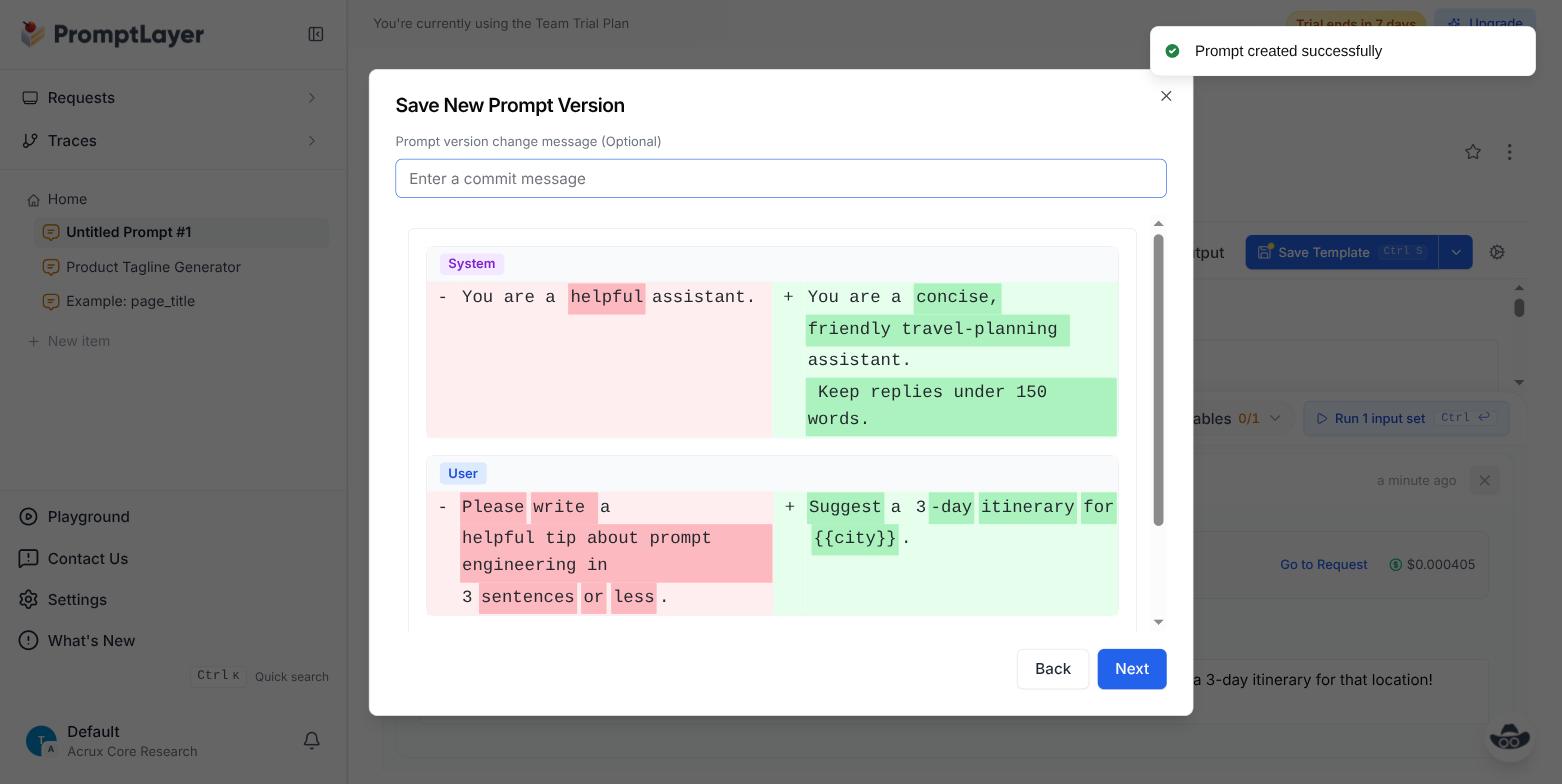
Editing the prompt and clicking Save Template opens a Save New Prompt Version dialog that shows a diff of what changed, with line-level additions and removals colored like a git diff, and an optional commit message field.
Show screenshot: PromptLayer save-new-version dialog with a diff
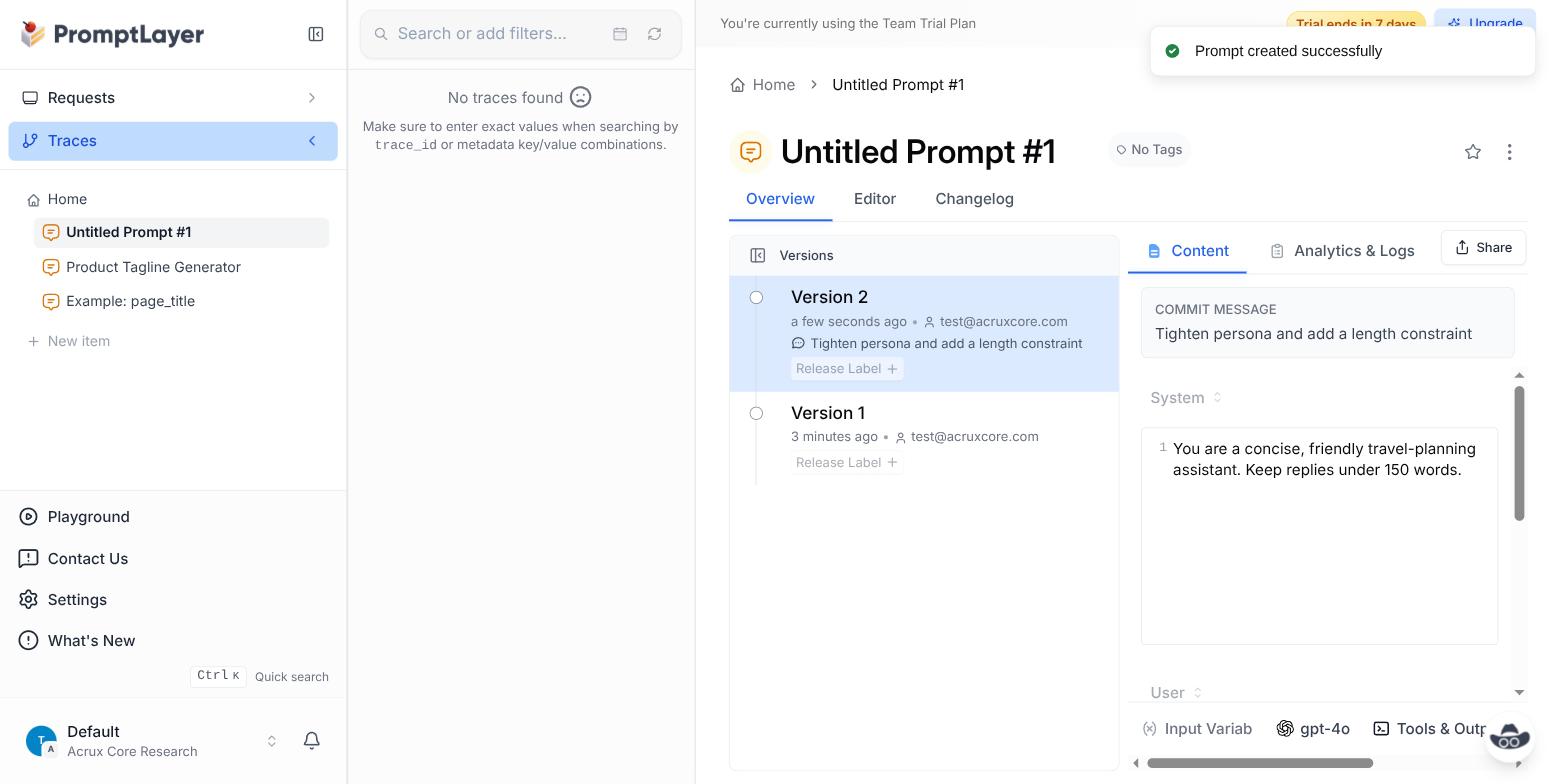
After saving, the prompt's Overview tab lists every version with its commit message, author, and
timestamp, and lets you attach a Release Label (e.g. production) to any version.
Show screenshot: PromptLayer version history
4. Inspecting the trace/request view
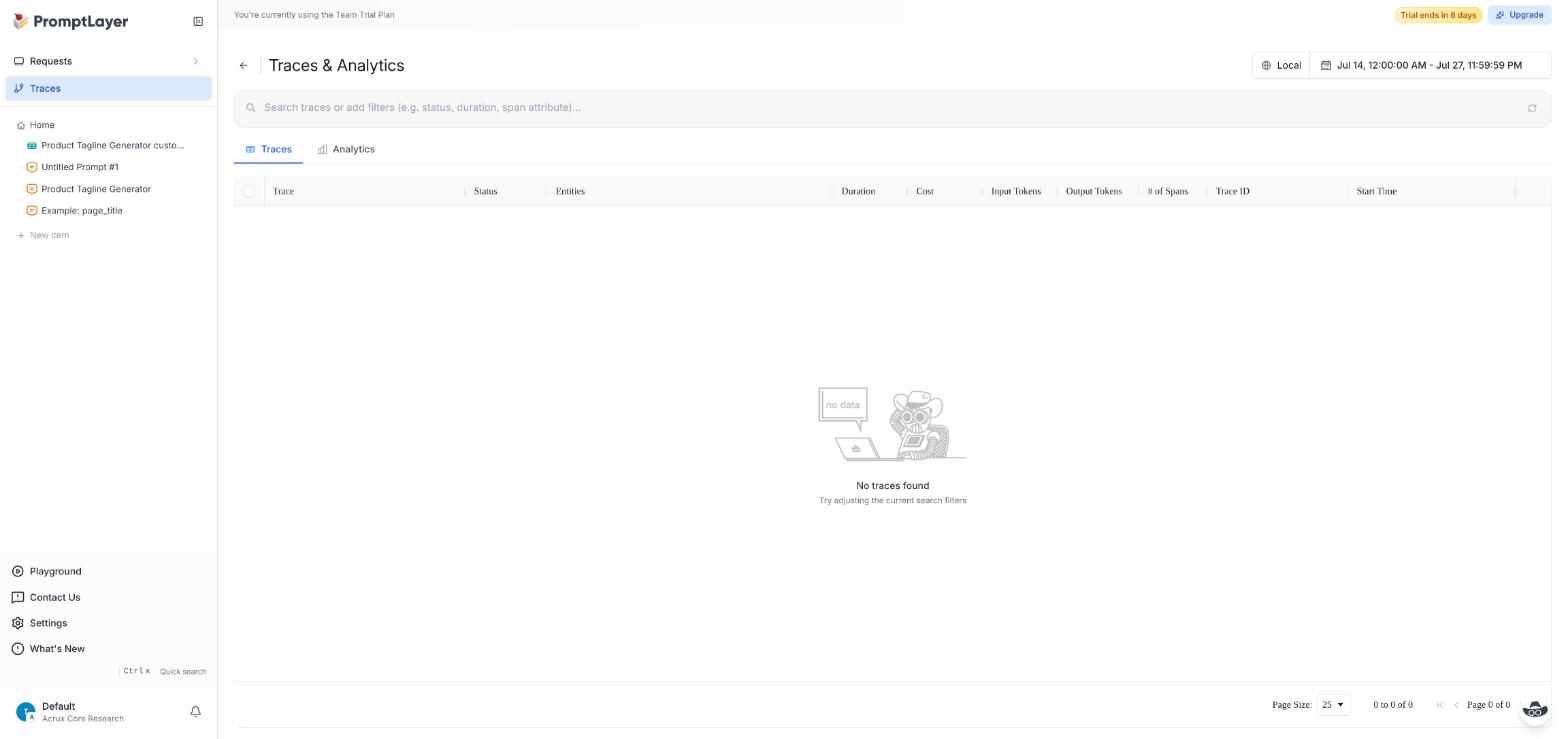
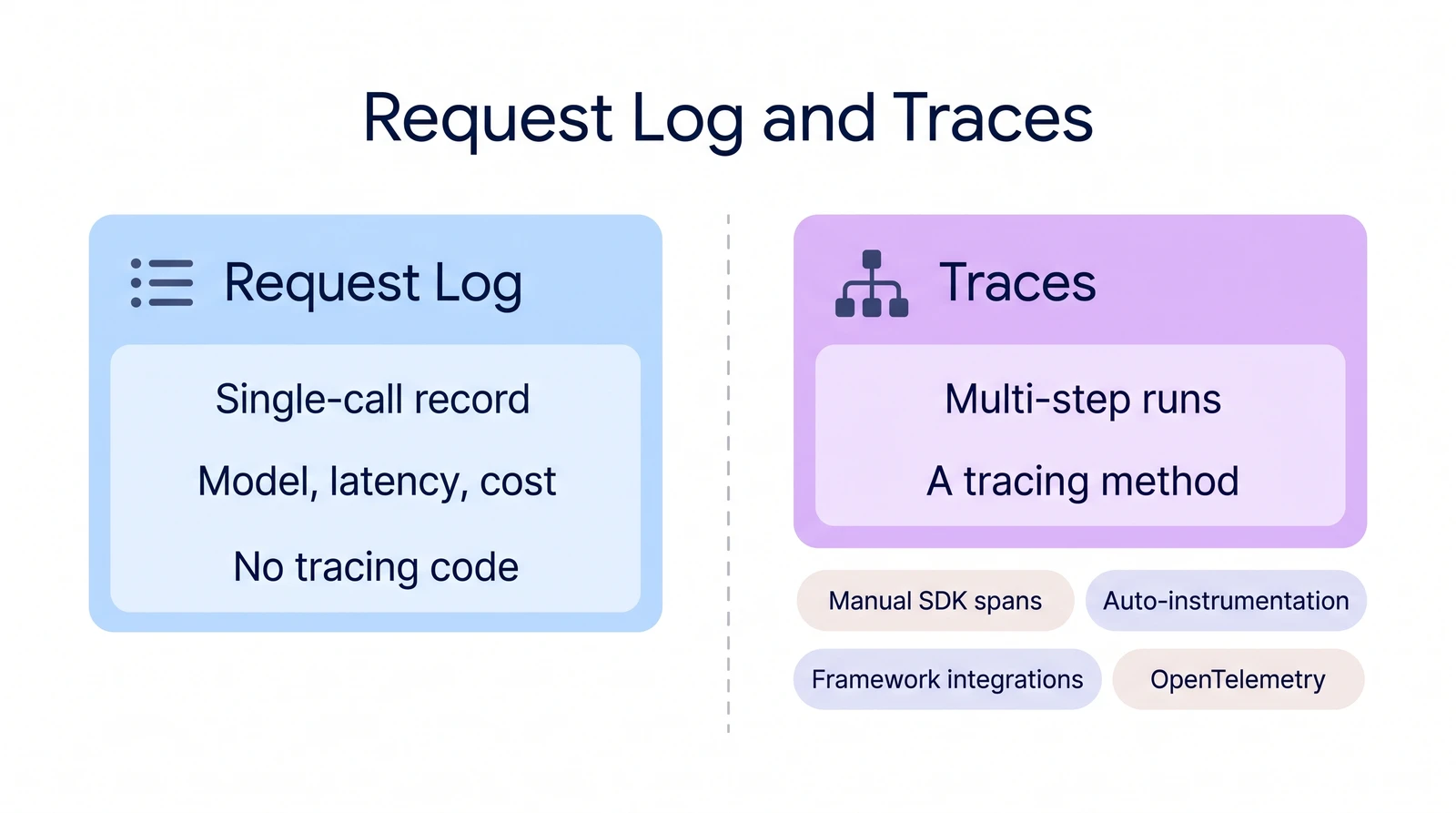
PromptLayer has two separate sidebar sections: Traces and Requests. Traces, PromptLayer's span-based view of multi-step runs, came back empty for our playground run. In our July 2026 test, running a prompt in the UI did not create a trace.
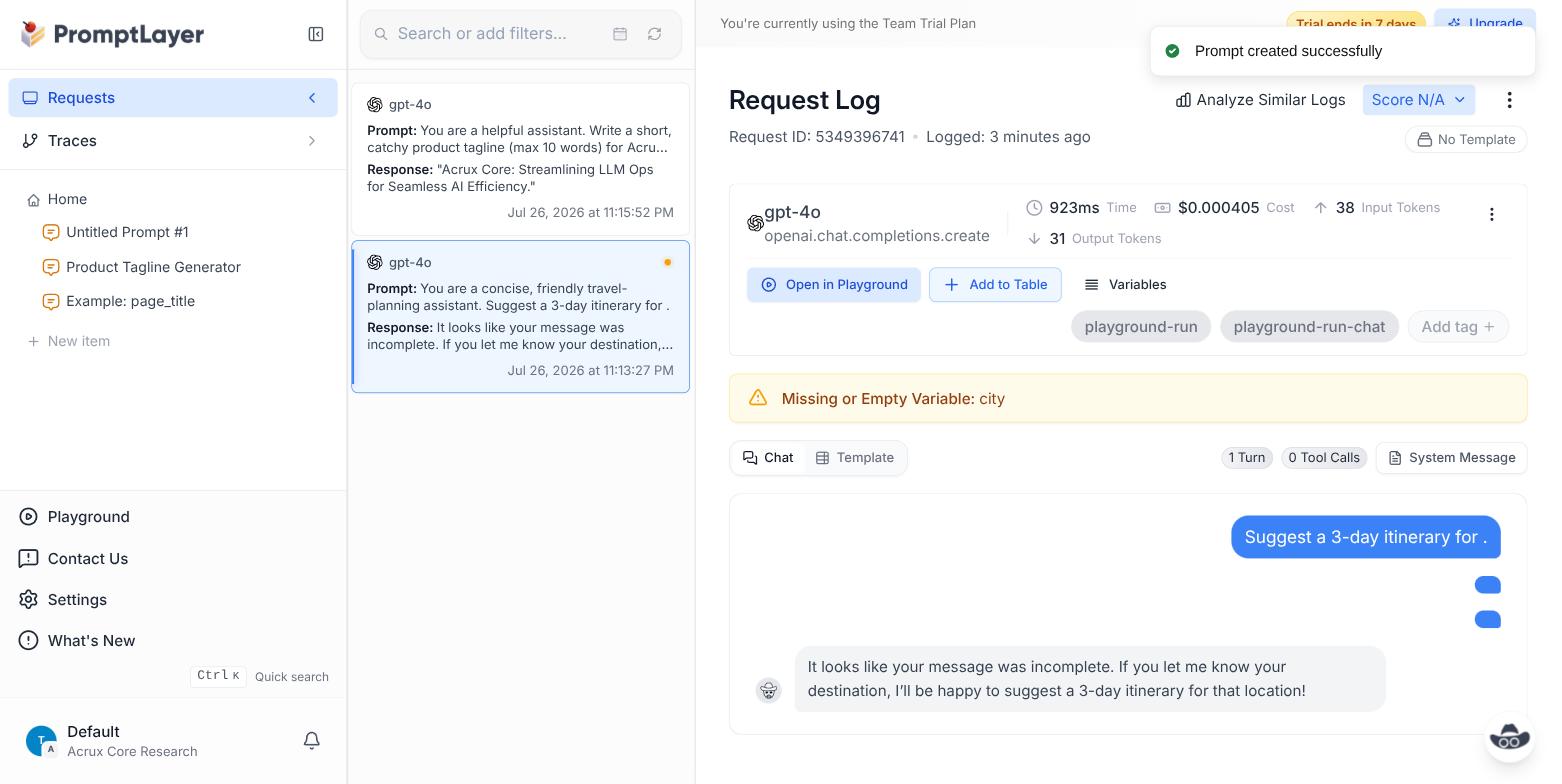
What did get logged automatically is a Request: a flat, single-call record. Opening it shows the model, latency (923ms), cost, input/output token counts, tags, and the exact chat turn — but no nested steps, because a single LLM call has none to show.
Show screenshot: PromptLayer Request Log detail
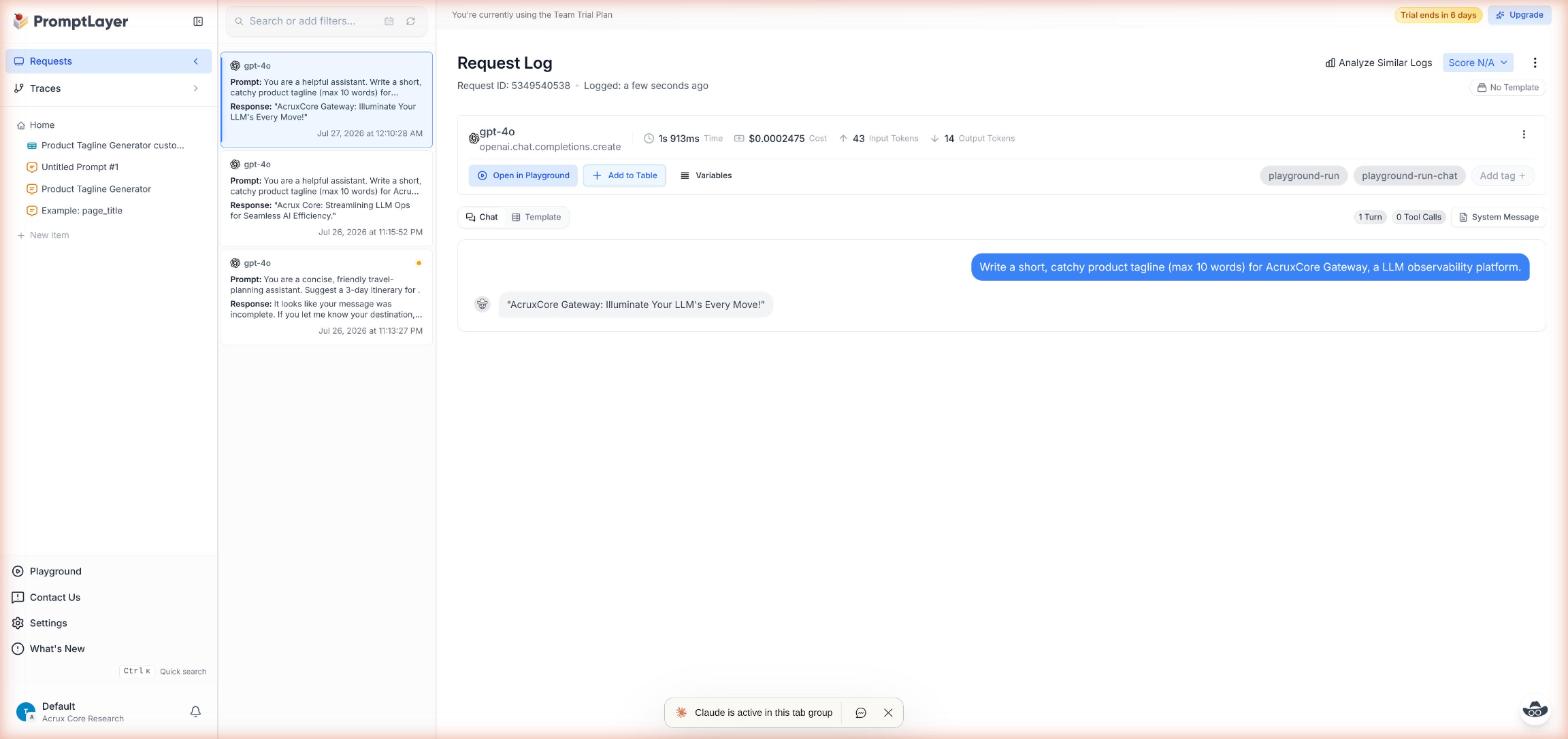
The tagline run appeared in the Request Log right away, with the same detail: model, latency, cost, and token counts.
Show screenshot: PromptLayer Request Log for the live request
Traces stayed empty after that live call too:
Show screenshot: PromptLayer Traces page still empty
Traces are filled by a tracing method in your code. PromptLayer's traces docs list four: manual SDK spans, auto-instrumentation of a provider SDK such as OpenAI's, framework integrations, and OpenTelemetry (checked on 2 November 2026). We added none of them, so this walkthrough does not judge the Traces view.
PromptLayer does not sit in front of your model calls the way a gateway does. With the SDK's
run(), PromptLayer's docs say the SDK fetches the template, sends the call to the provider from
your process, and saves the request and response to PromptLayer. PromptLayer's Workflows are the
exception: they run multi-step pipelines on PromptLayer's servers.
Key point: Without any tracing code, PromptLayer gave us a flat Request Log entry per call, with model, latency, cost and tokens. The Traces view needs one of its four tracing methods, which this walkthrough did not set up.
5. Evaluation
PromptLayer has two evaluation tools in the UI.
The Evaluate button on a prompt's Overview page opens a grid-style eval tool. It has presets for
Model comparison, Ground truth check, Structure check, and a blank Custom prompt
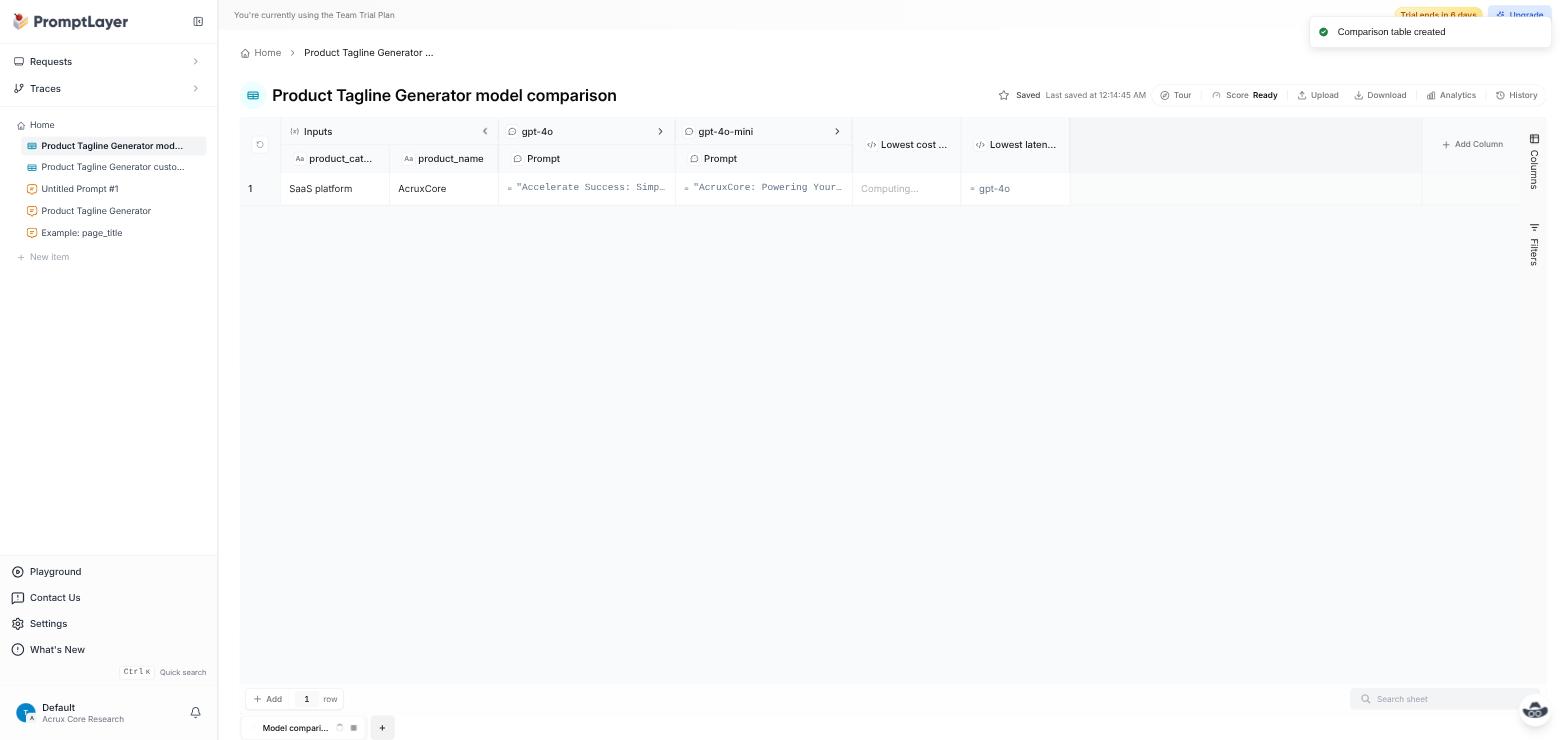
table. We ran Model comparison with one input row and two models (gpt-4o and gpt-4o-mini).
It built a spreadsheet-style table, called both models, and showed each output side by side with
"lowest cost" and "lowest latency" columns:
Show screenshot: PromptLayer model comparison of gpt-4o and gpt-4o-mini
For a fixed example set, PromptLayer's docs now point to Tables. Tables hold the inputs, computed outputs, scoring and history of an evaluation, and a sheet in a Table has versions. A Table can start from a prompt, from imported request history, or blank. The older Datasets and Evaluations "remain available for existing projects", and the docs say to "use Tables for new workflows" (migration page, checked on 2 November 2026). We did not test Tables or Datasets in this walkthrough.
The second tool is the A/B Test feature: pick a Release Label attached to a prompt template, and it builds an experiment that compares traffic between labeled versions.
Show screenshot: PromptLayer Create A/B Test dialog
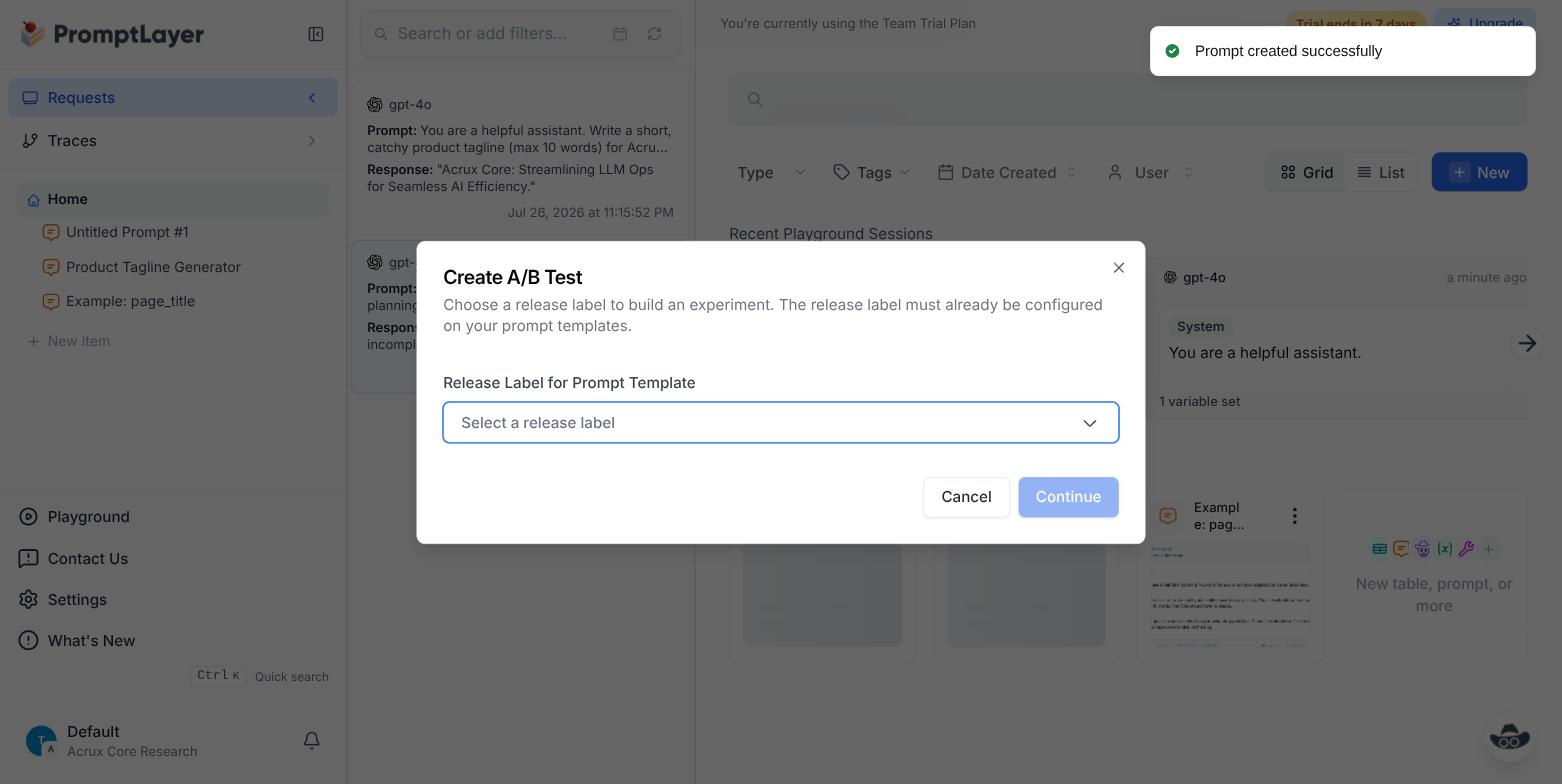
This is a live-traffic A/B test between two named releases, not an offline eval against a fixed example set. We did not set up a second release label, so we did not run an A/B test. A person can also score a single request with the "Score N/A" control on each Request Log page.
Doing this from code
Everything above was done in the dashboard. PromptLayer also has a Python and a JavaScript SDK that wraps the OpenAI client, so the same call can be made from a script. We generated a scoped PromptLayer API key under Settings → PromptLayer API Keys and ran this:
import os

from promptlayer import PromptLayer

pl_client = PromptLayer(api_key=os.environ["PROMPTLAYER_API_KEY"])
openai_client = pl_client.openai.OpenAI(api_key=os.environ["OPENAI_API_KEY"])

response = openai_client.chat.completions.create(
    model="gpt-4o-mini",
    messages=[
        {"role": "user", "content": "Explain prompt versioning in one sentence."}
    ],
    pl_tags=["acruxcore-sdk-demo"],
)

print(response.choices[0].message.content)
Real output from running it:
Show output: the reply from the SDK script
Prompt versioning refers to the practice of creating and managing different iterations of a prompt to track changes, enhance performance, or address specific user needs in generative models.
You keep the normal OpenAI client interface, but get the client from pl_client.openai instead
of importing openai directly, and PromptLayer logs each call. There is no decorator and no
context manager. The request appeared in the Request Log right after the script ran, next to the
ones we made by clicking "Run" in the dashboard:
Show screenshot: PromptLayer Requests table with the SDK call
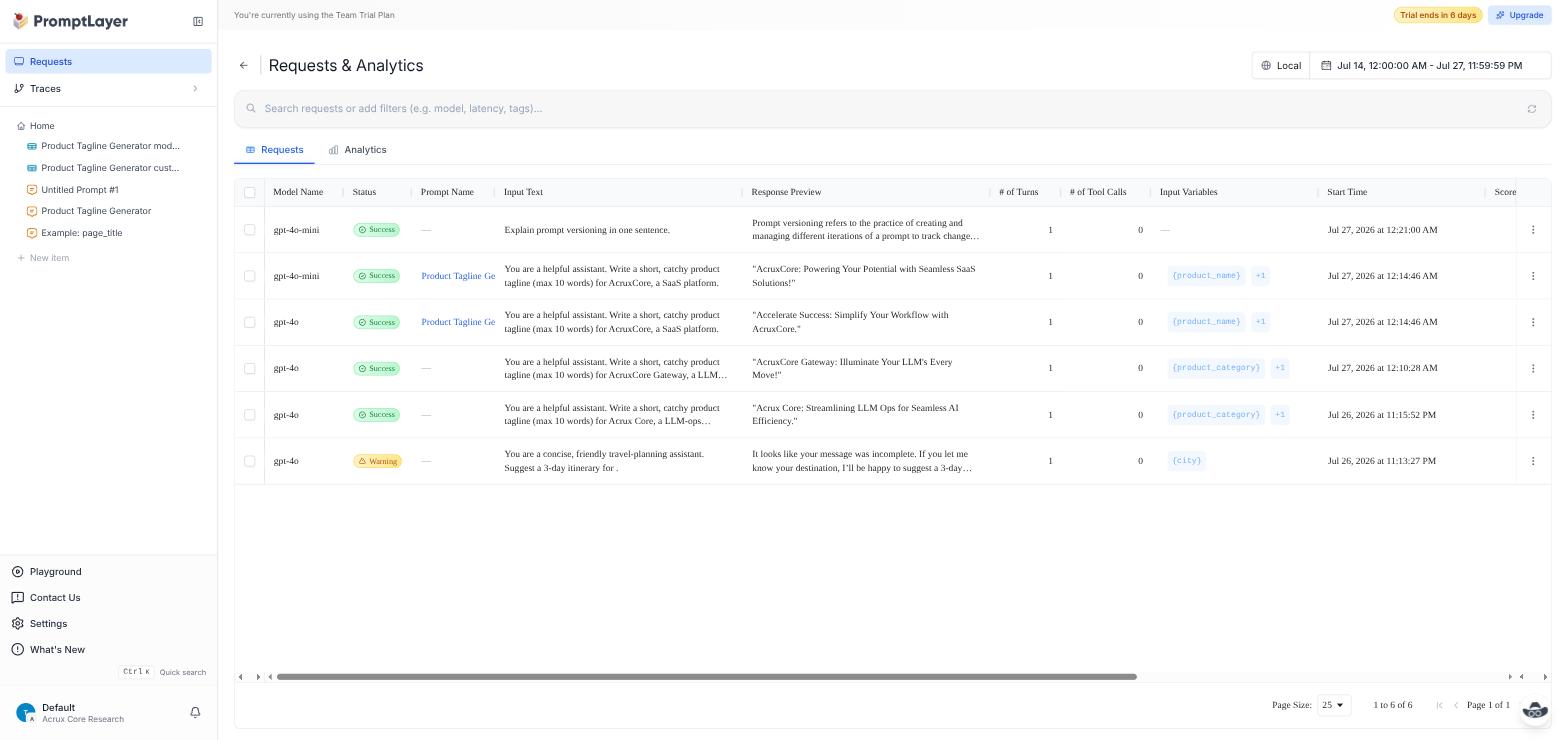
This call did not use a saved prompt template. It is a raw chat completion, logged. To use a
versioned template and its release label from section 3, you fetch the template with
pl_client.templates.get(...) first and pass its rendered messages to the same
chat.completions.create call.
What's unique to PromptLayer
- Release-label A/B tests on live traffic, to compare two prompt versions on production traffic instead of a fixed test set. We saw the dialog but did not run a test.
- Variable detection in the editor. Typing
{{name}}in a message makes it a template variable, with no separate declaration step. - A git-style diff in the save dialog, shown before you save a new version, with an optional commit message.
- Requests and Traces as separate views. A flat per-call log needs no tracing code, and multi-step traces need a tracing method.
- An ad-hoc model-comparison table. The Evaluate button builds a table that calls several models on the same input row and shows the output, cost and latency side by side, with no dataset first.
Plans and prices
PromptLayer's pricing page lists Free at $0 with 2,500 requests a month, Pro at $49 a month and Team at $500 a month, with user limits of 5, 5 and 25. Self-hosting is on the Enterprise plan only (checked on 2 November 2026). We tested on a Team trial in July 2026.
FAQ
How do PromptLayer versions and release labels work?
Saving a prompt creates a new numbered version, and the save dialog shows a diff with an optional
commit message. A release label such as production marks which version is live.
What is the difference between PromptLayer's Request Log and Traces?
The Request Log records each model call as a flat entry with model, latency, cost and tokens, and it needs no tracing code. Traces show multi-step runs as spans, and they need a tracing method such as SDK spans, auto-instrumentation or OpenTelemetry.
Does PromptLayer support Jinja2 templates?
Yes. PromptLayer's docs offer Jinja2 templates, with conditionals and loops, as well as
{{variable}} placeholders. We used only the placeholders in this walkthrough.
How do you evaluate prompts in PromptLayer?
The Evaluate button builds comparison tables, such as one model against another on the same inputs. For a fixed example set, PromptLayer's docs recommend Tables, and release labels support A/B tests on live traffic.
How much does PromptLayer cost?
On 2 November 2026, Free was $0 with 2,500 requests a month, Pro was $49 a month and Team was $500 a month. Self-hosting is on the Enterprise plan.